
Designing table editing for enterprise.
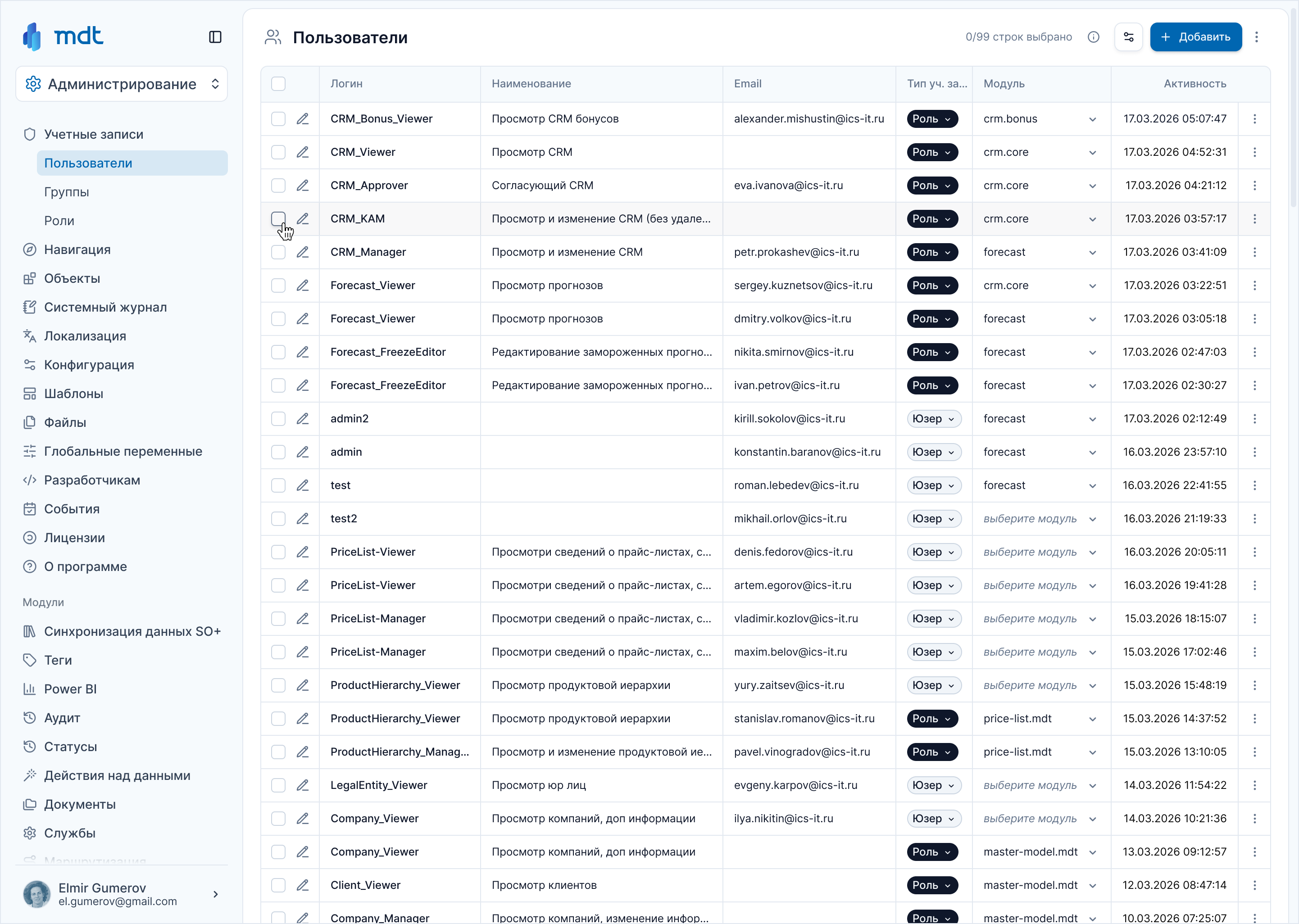
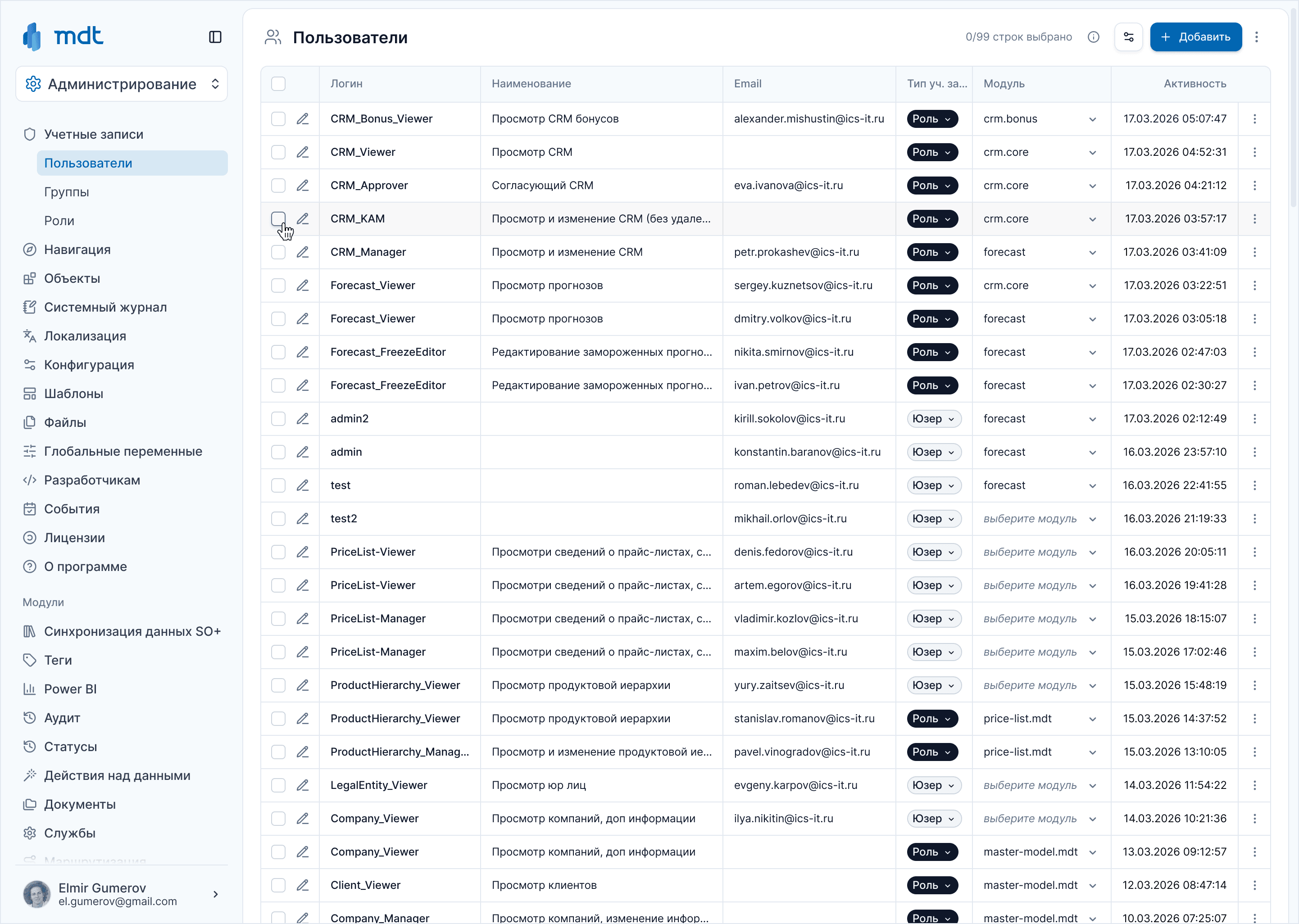
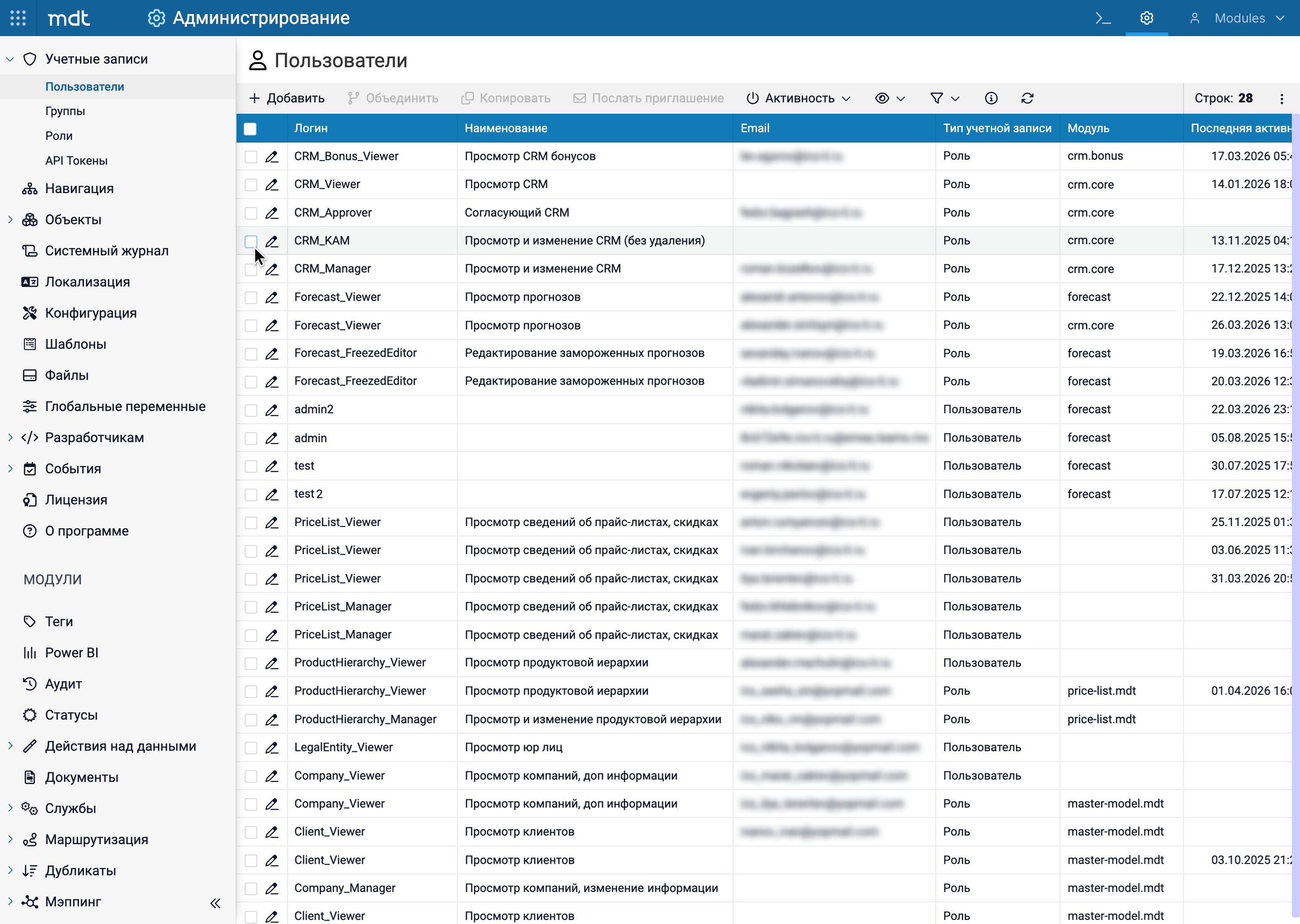
Tables are the primary working surface for operators — they spend most of their session inside table views, not in forms or detail pages.
Editing data in the old table often required navigating to a separate form. For operators working with dozens of records per session, editing felt like a separate mode — not a natural part of working with data.
The goal was to make editing feel as natural as working in a spreadsheet. Familiar patterns from Excel and Notion: cell selection, inline dropdowns, drag-to-fill. But with the visual language of a controlled system: explicit save, clear states, reversible actions.
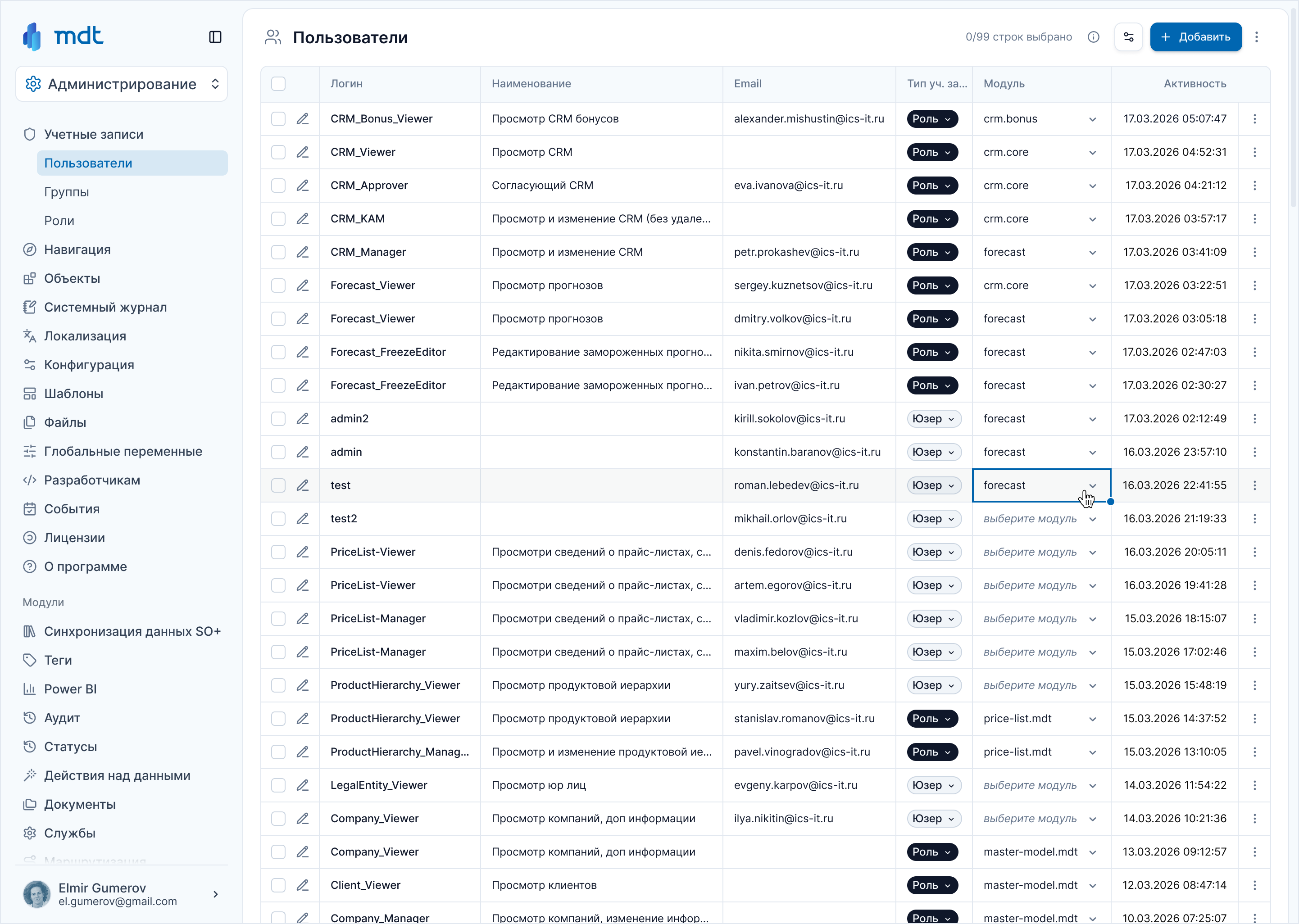
Click selects a single cell — not the whole row. Row hover highlights the full row, making it easier to navigate large datasets.
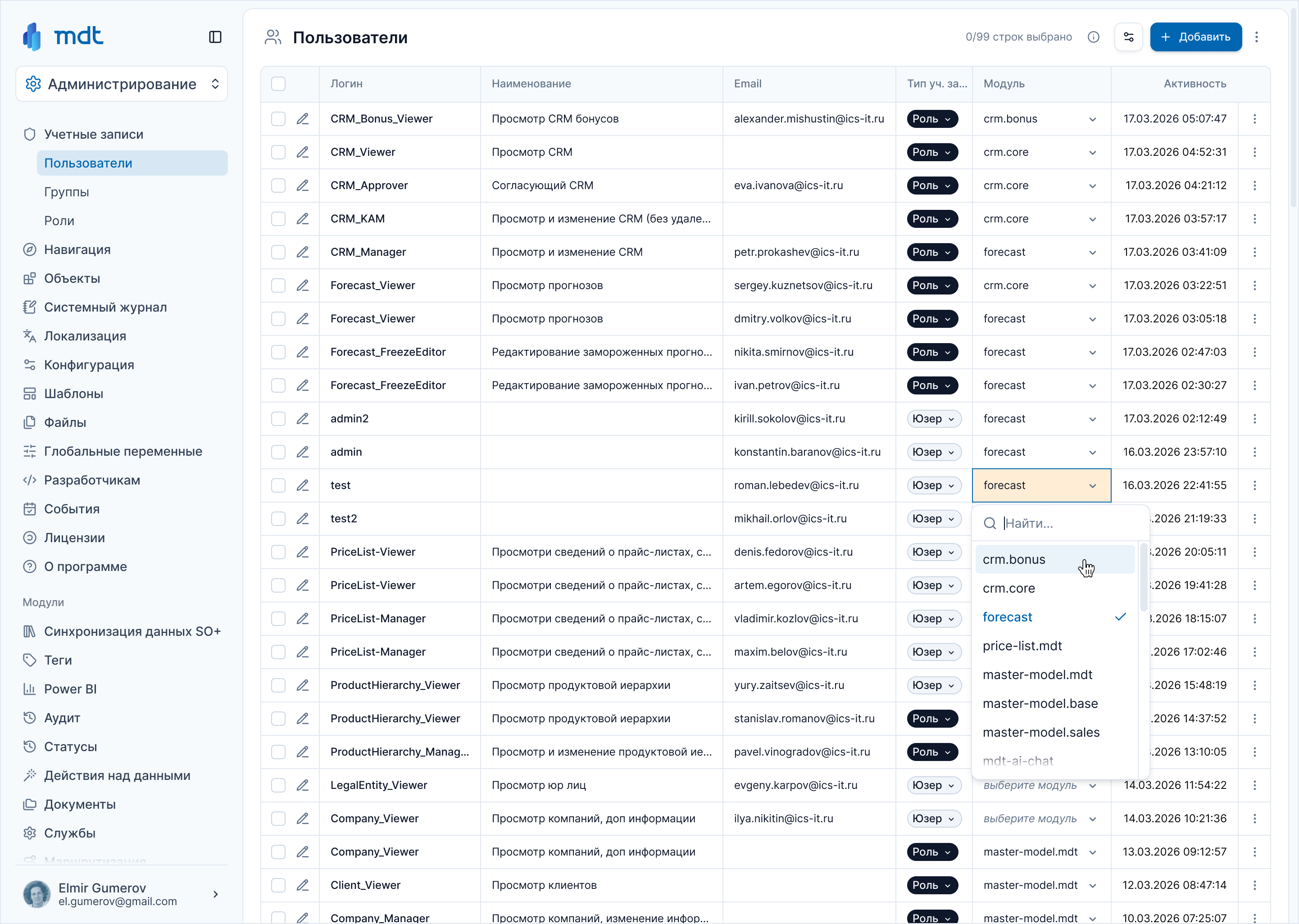
Click on a selected cell opens an inline dropdown — no dialog, no page transition. Search inside the list speeds up selection. Current value is highlighted and marked with a checkmark.
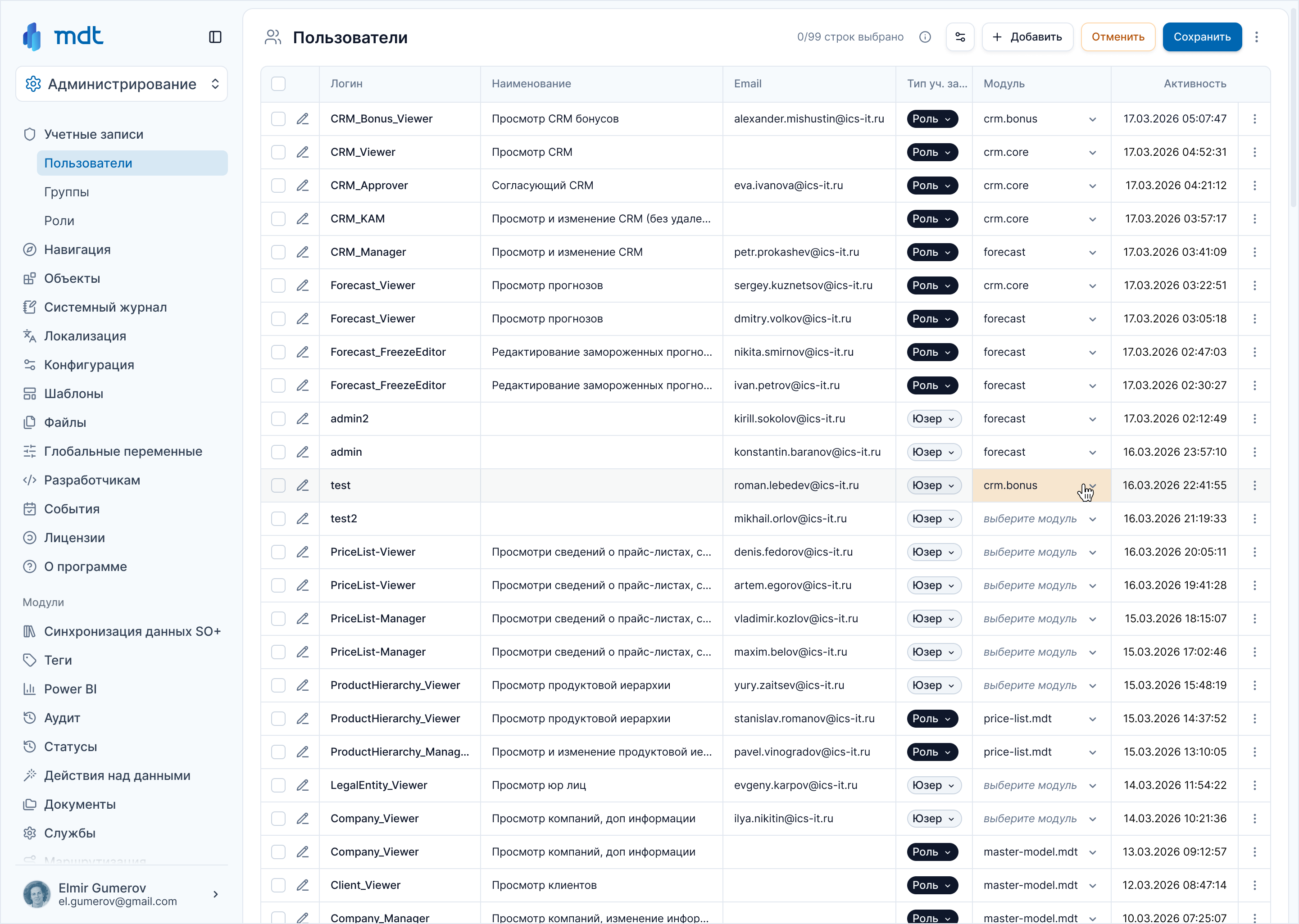
After a change, the cell is highlighted — a persistent signal that data is not yet saved. Save and Cancel buttons appear in the toolbar only when there are pending changes.
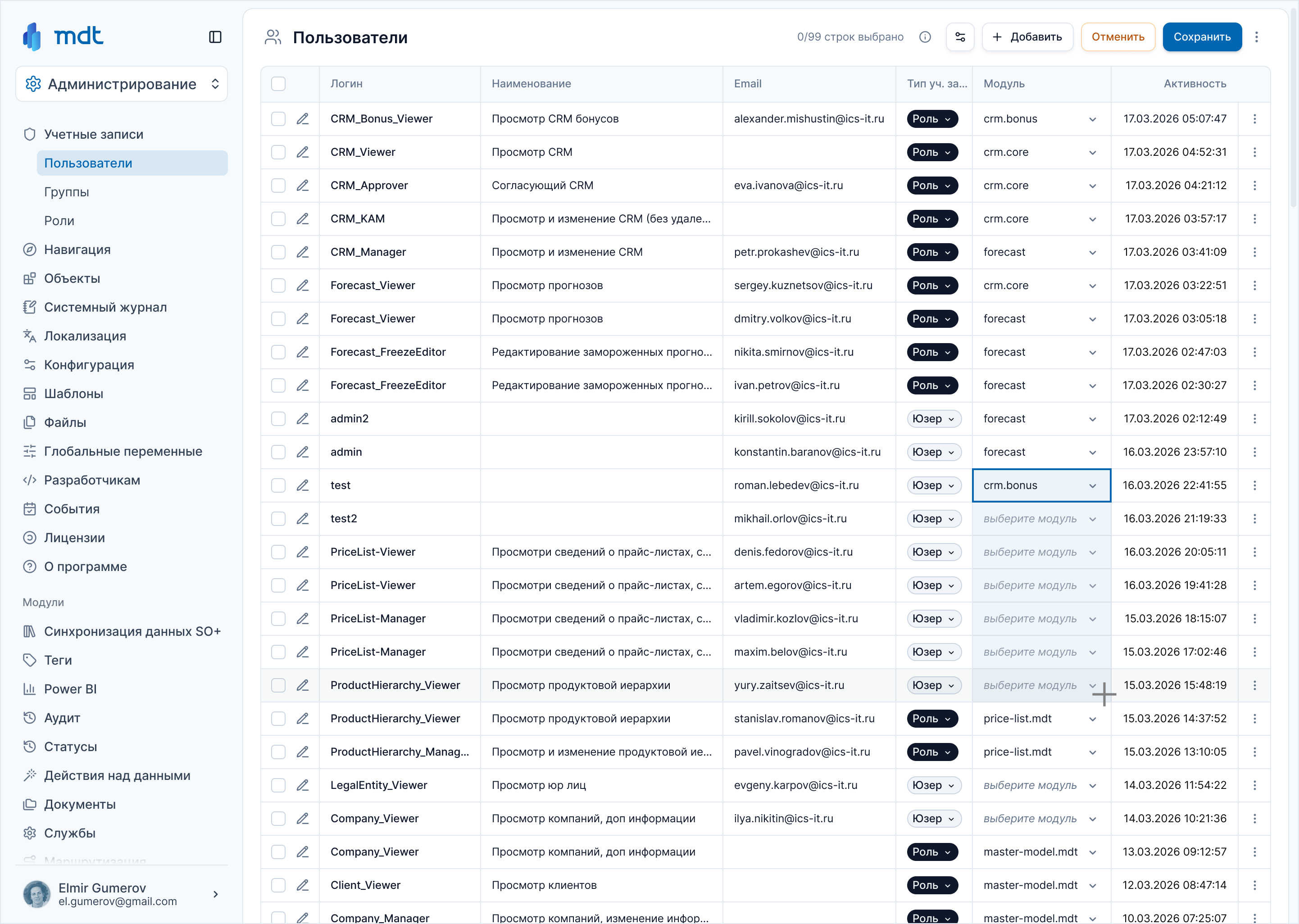
Drag the cell corner to spread the value down — the same pattern as Excel and Notion. Bulk updates without reopening the dropdown on every row.
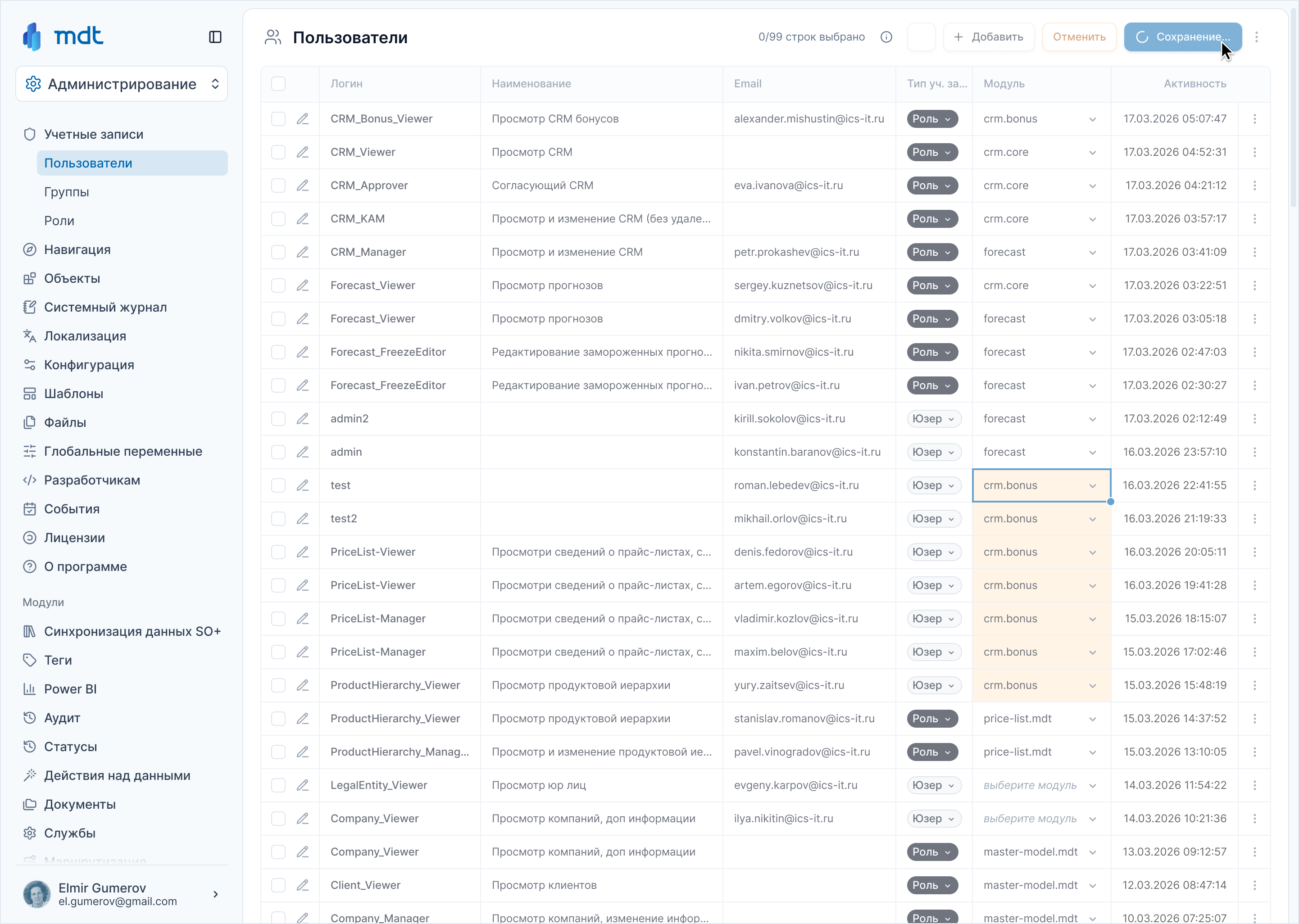
During save, the table becomes inactive — no concurrent edits while data is writing. This prevents conflicts and protects data integrity.
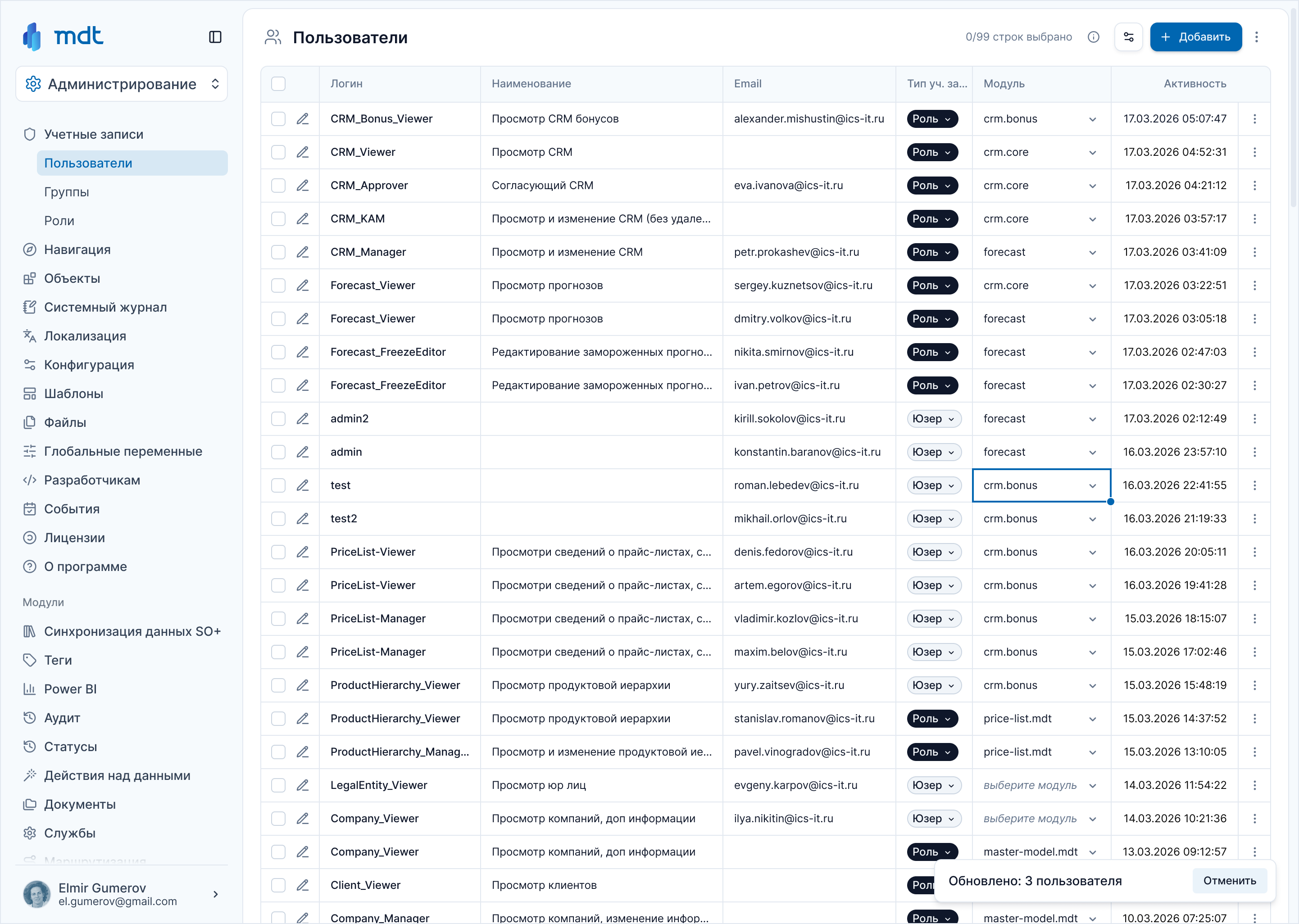
Modified states clear. A toast notification confirms the number of updated records with an Undo action — a real rollback, not just a message.
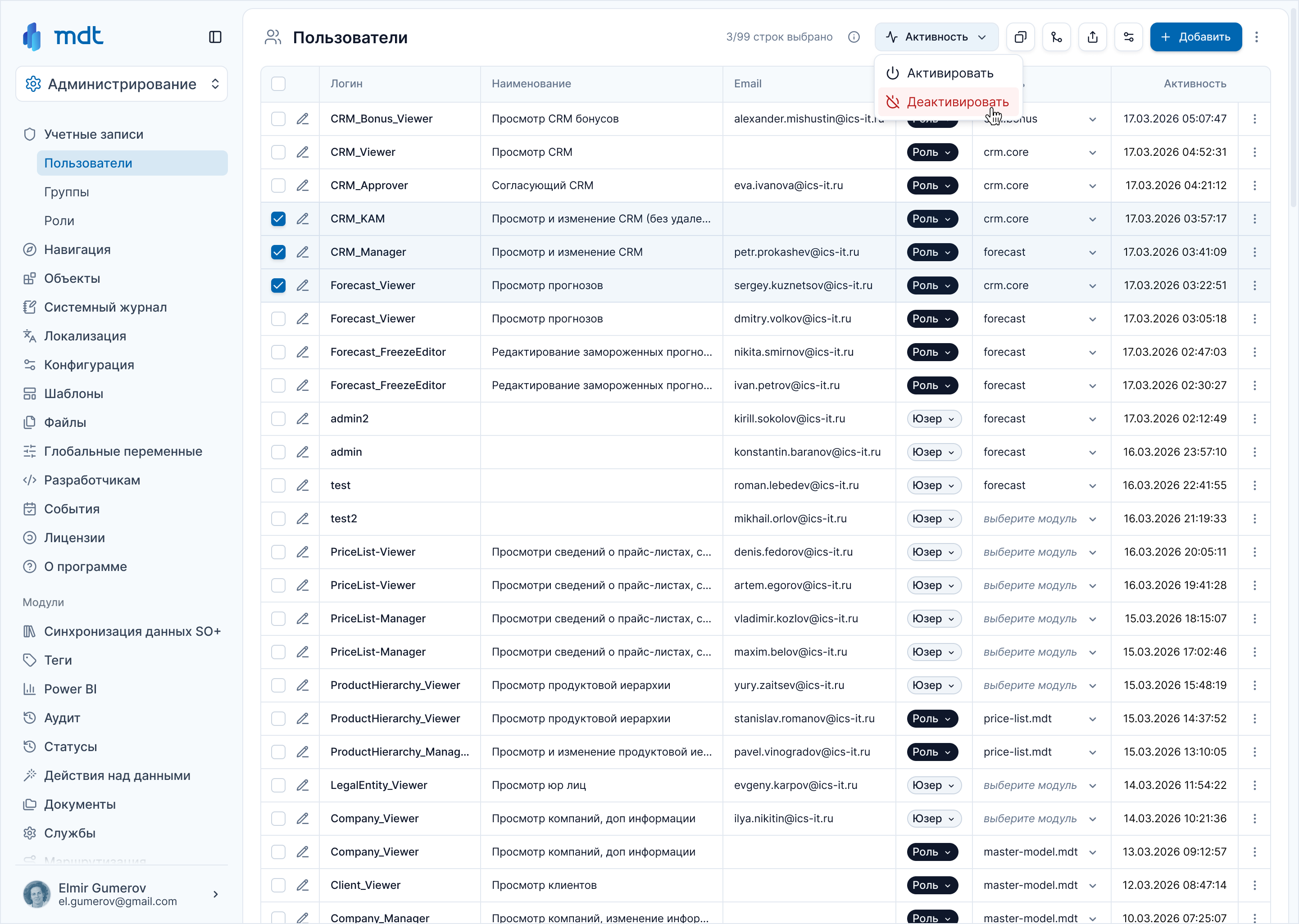
Selecting rows transforms the toolbar into context-specific actions. Destructive actions like Deactivate are marked in red — a visual warning without an extra confirmation dialog.
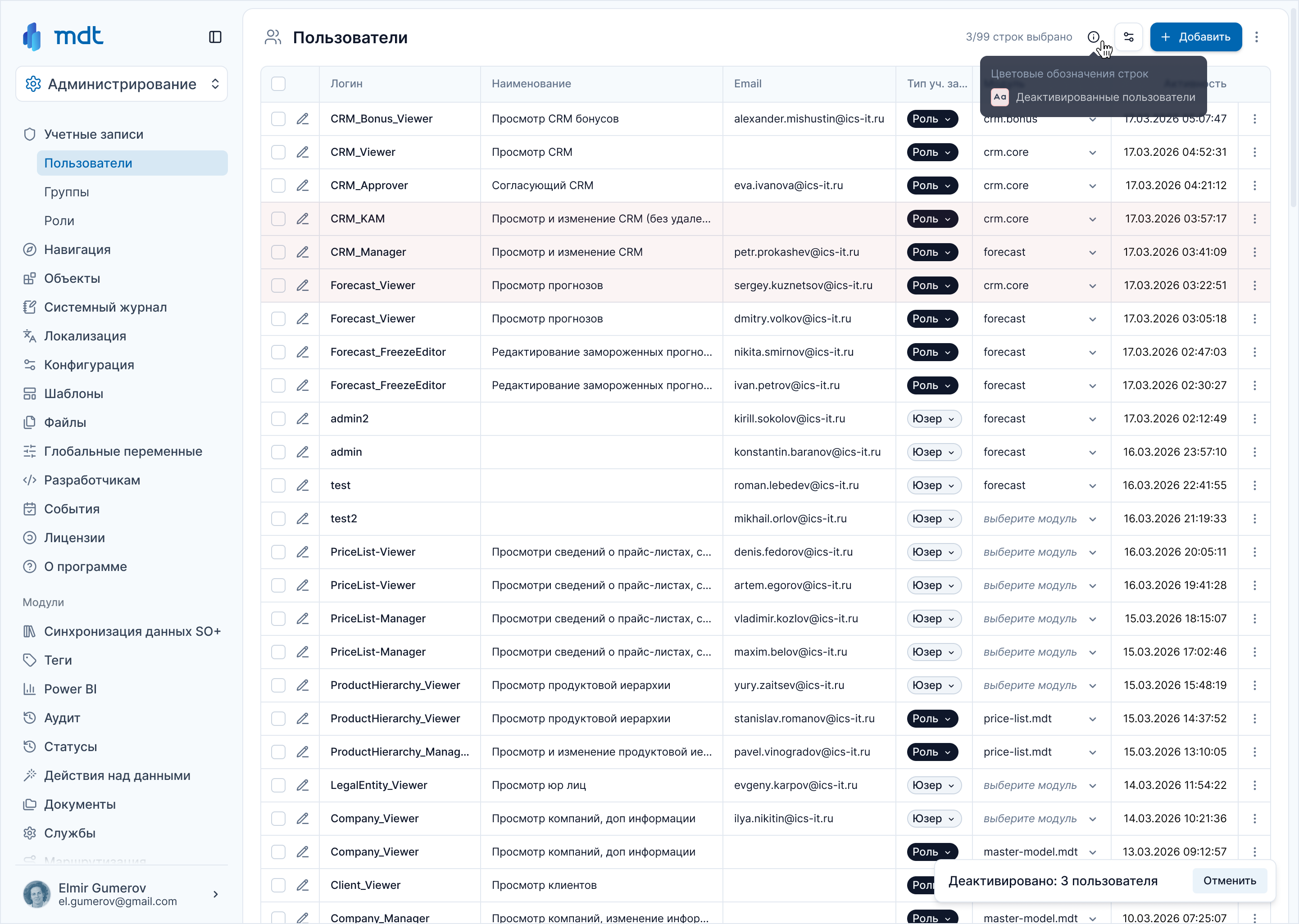
Deactivated rows stay visible in the table — admins see what changed, no gaps in the list. The same toast + undo pattern applies: every write operation is reversible.
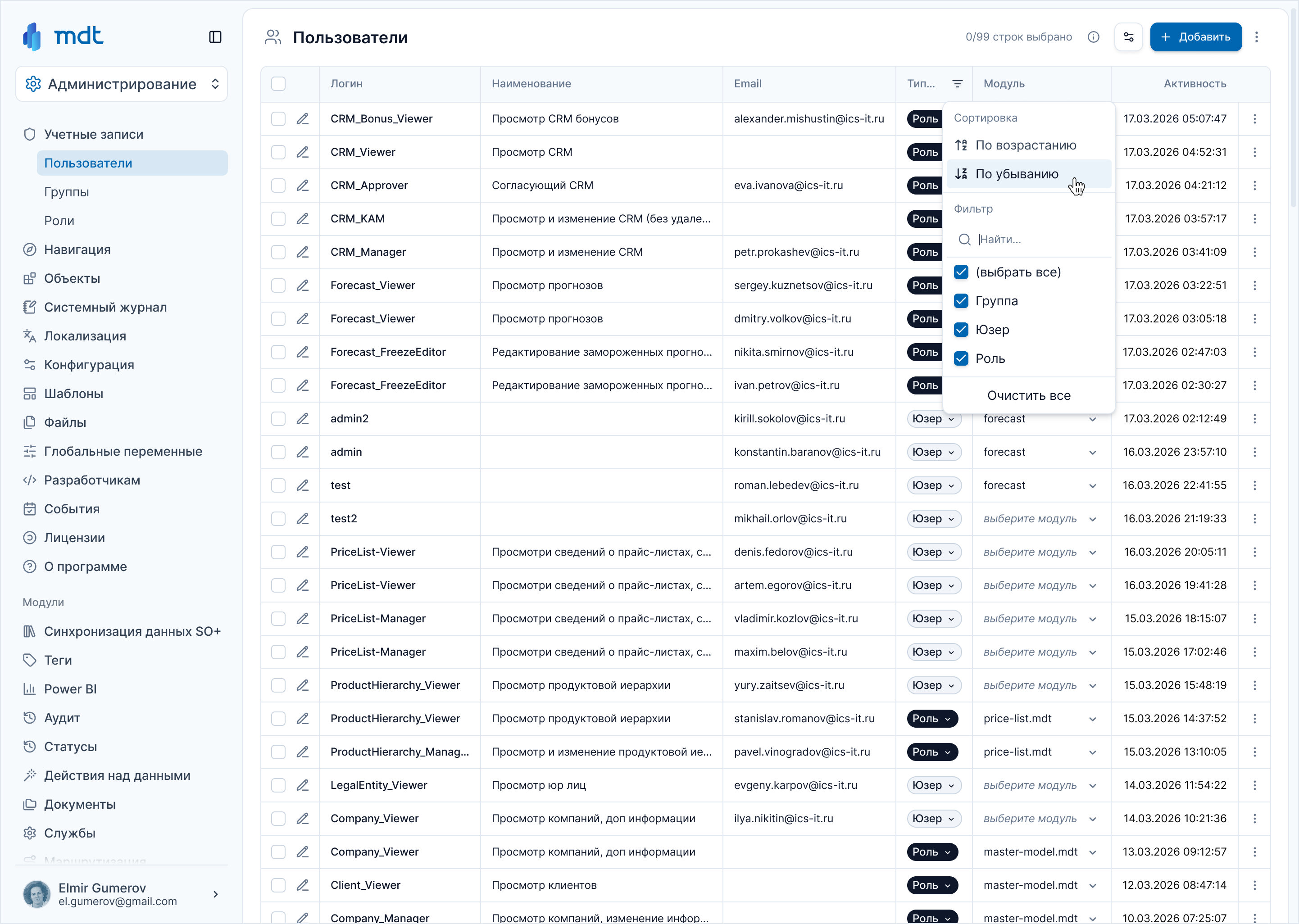
Sorting and filtering live in one menu per column — revealed on hover to keep the header clean. Search inside the filter speeds up selection in long value lists.
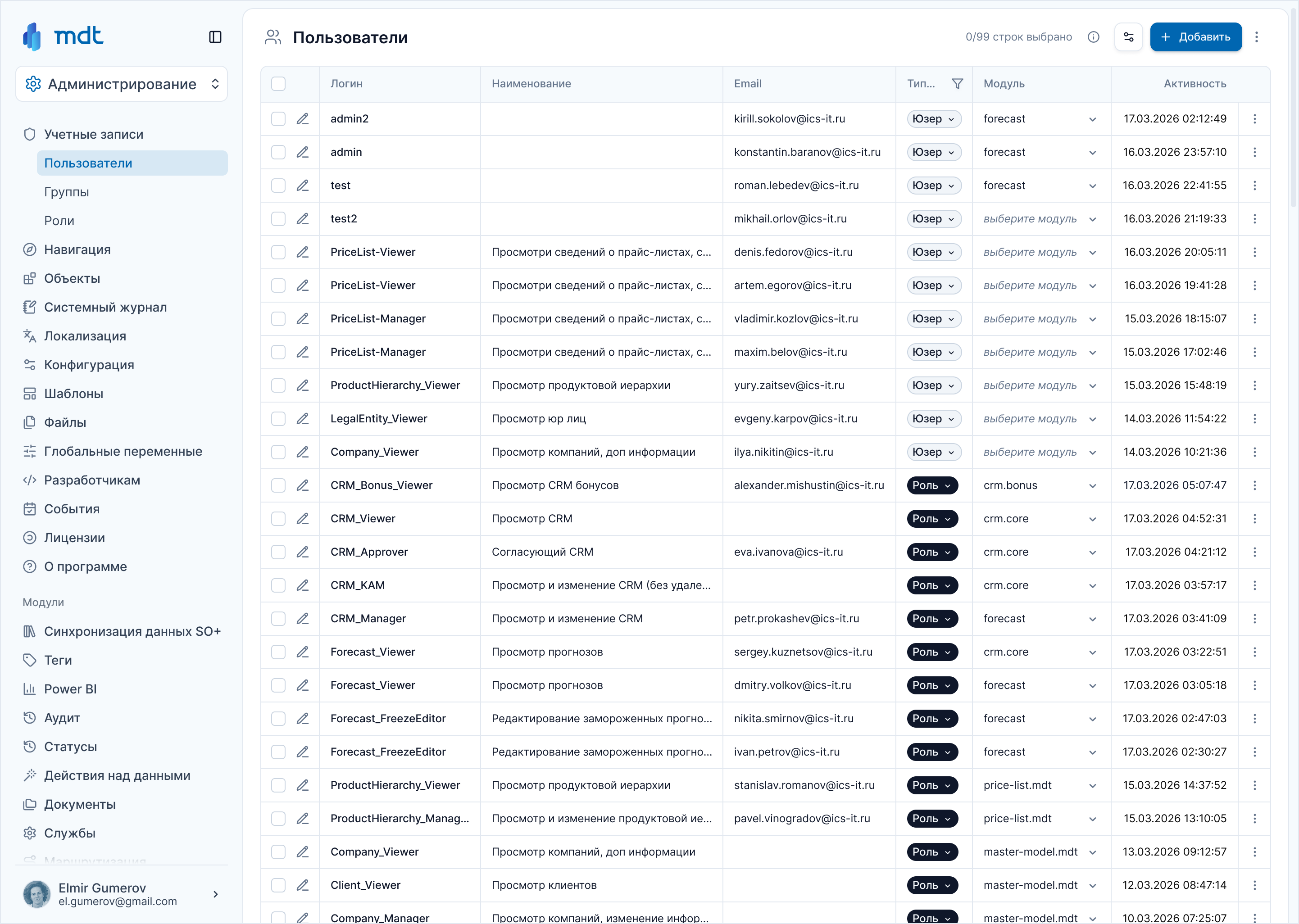
Active filters stay visible as a persistent icon in the column header — even after closing the menu. Users always know they're looking at filtered data, not the full list.
Batch save: сontrol and a clear confirmation point.
Color legend: every row state is clear, nothing hidden.
Active filters always visible: no decisions on partial data.
Unified feedback pattern: toast + undo for all operations.
One editing model across all tables.
Predictable behavior across all scenarios.
Filter visibility prevents errors.
Color states work systemically.
Inline editing without leaving the table.
Bulk updates via drag.
Always clear what's changed and saved.
Undo available for all operations.